Product tour
Your day in the field. Every detail, connected.
From the first customer visit to a clearer view of team performance. Explore Midara through the work of a sales representative, supervisor and manager.
Explore your day
Choose your role. Explore your day.
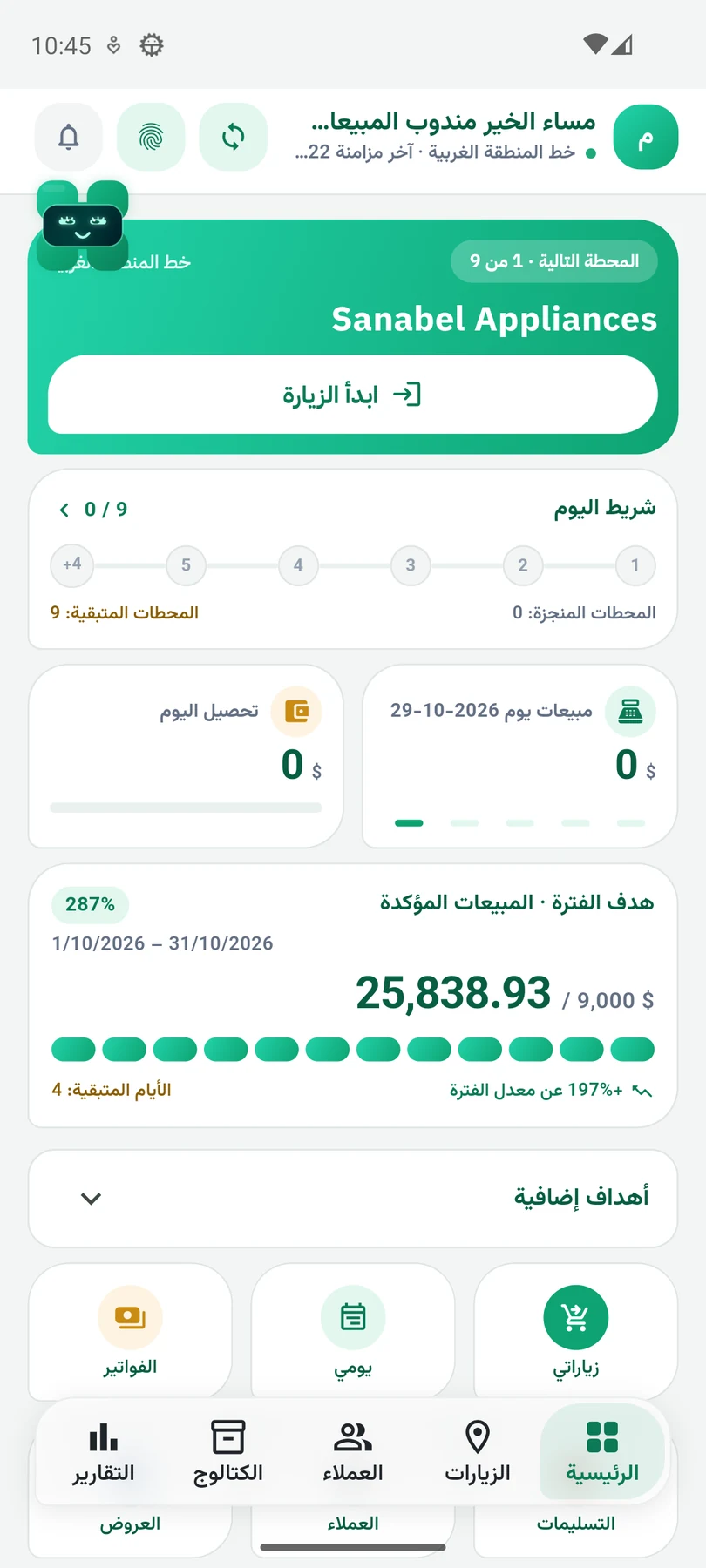
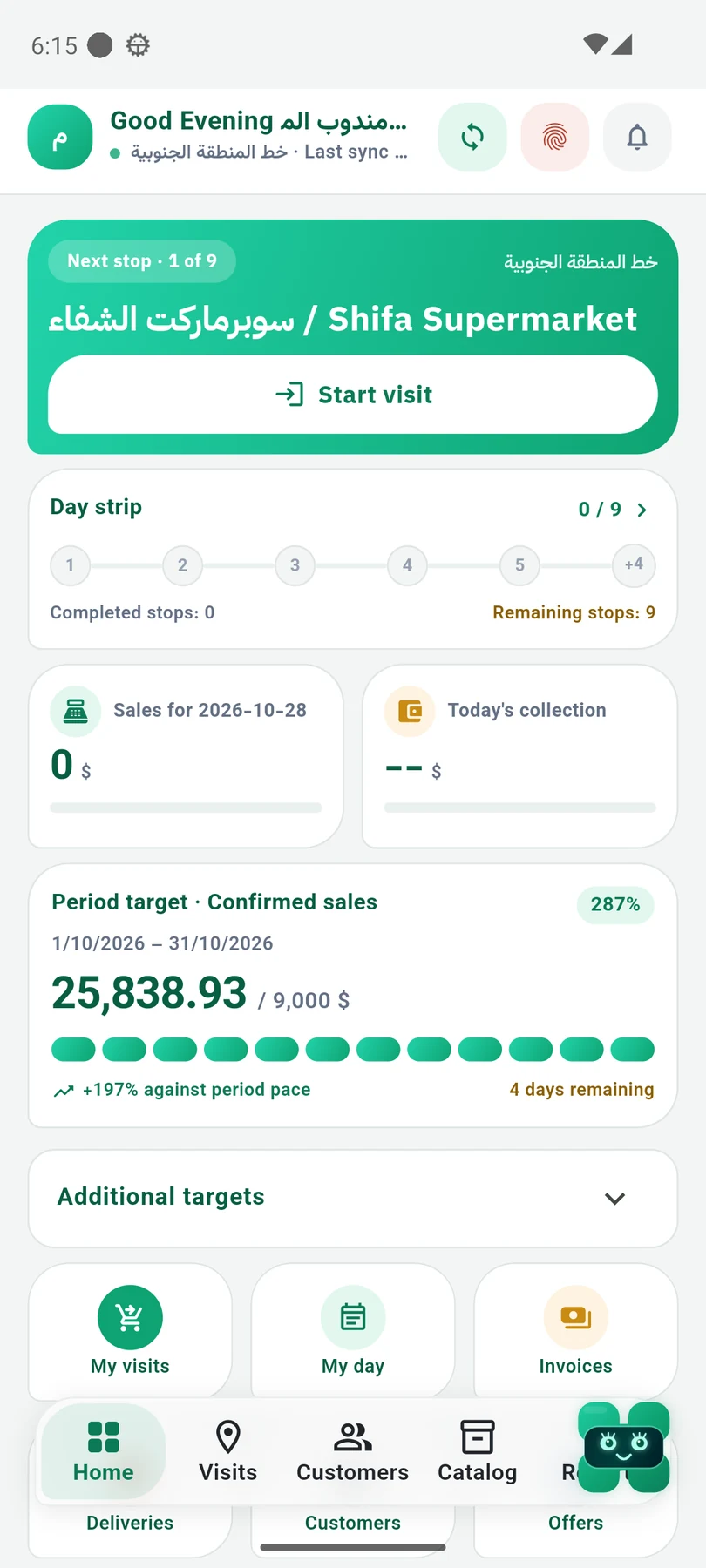
Start the day
Start with a clear next step.
Start with your daily work and targets in one place, then move to the visit or customer who needs you next.
- See today’s visits and available work.
- Reach customers and documents from the same home screen.
Visits and the map
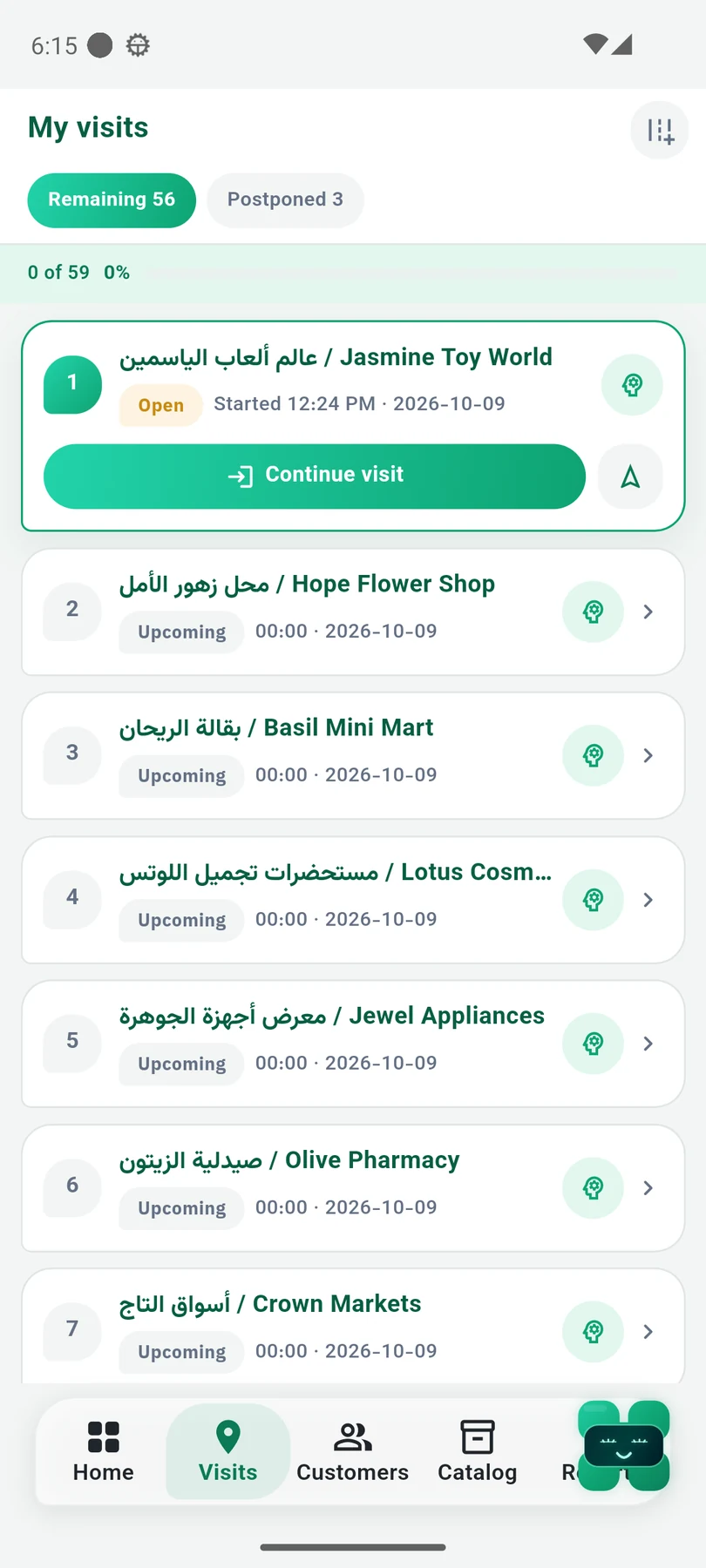
Know where to go. Start the visit.
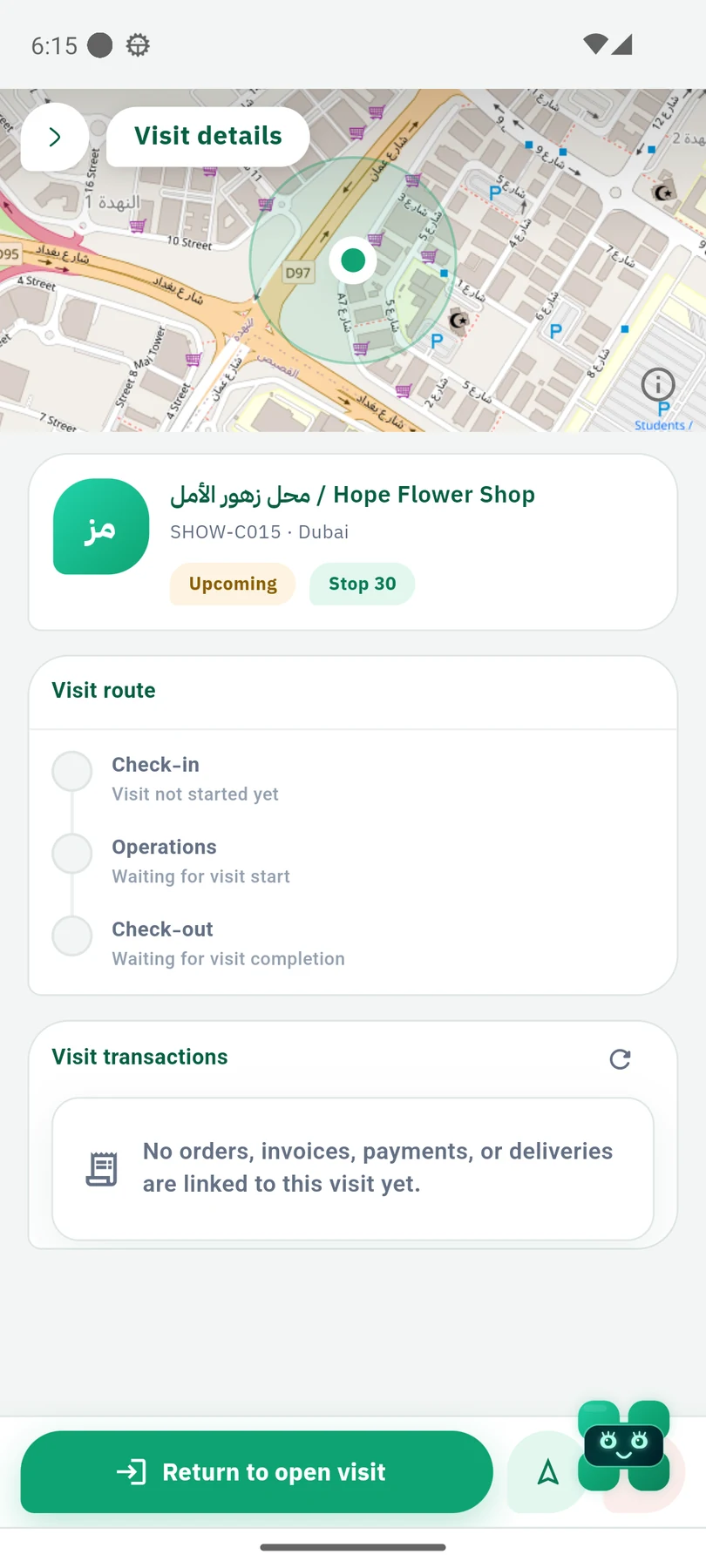
Review planned visits, then open the visit details and customer location before starting your work.
- Planned visits and their status.
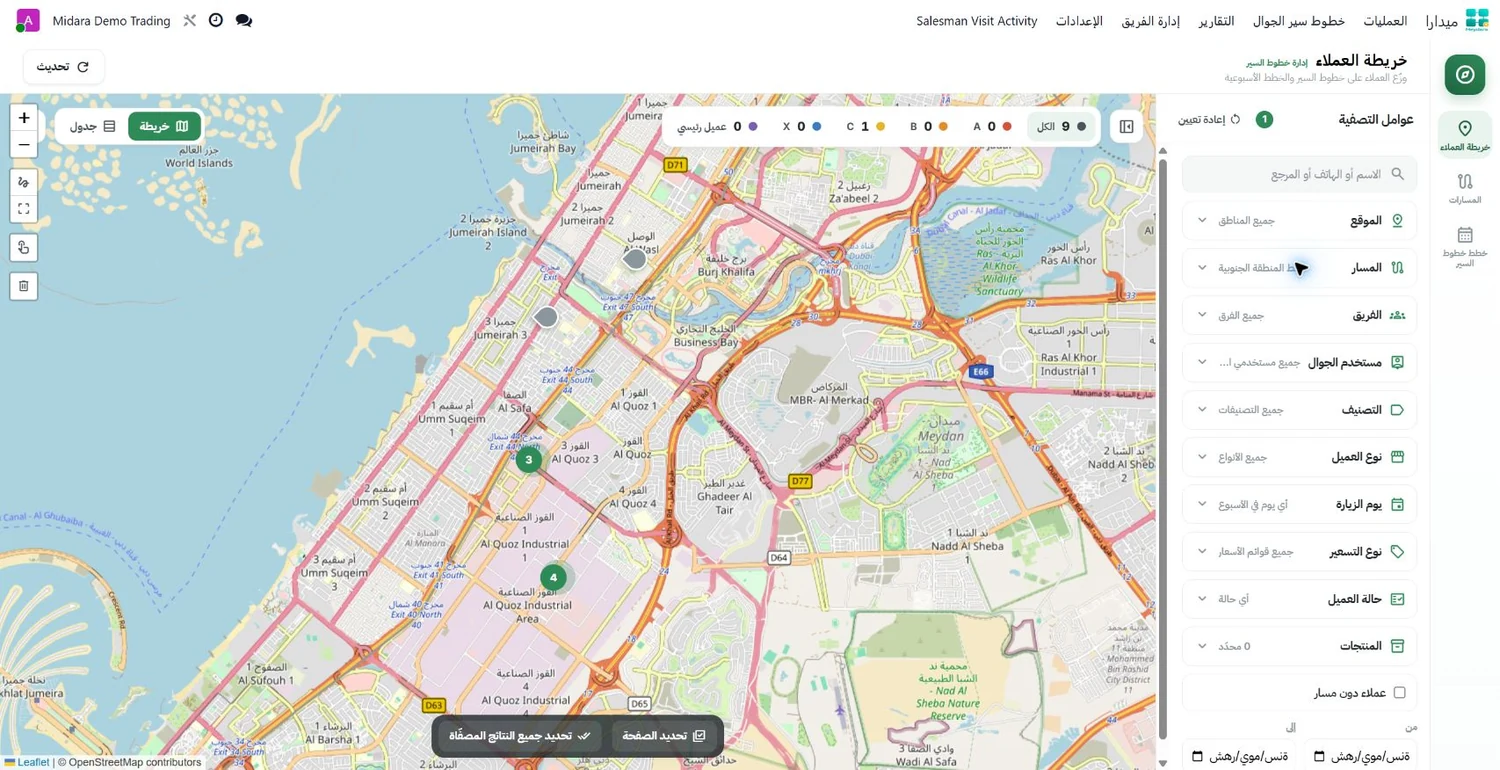
- Customer location and visit context on the map.
Customer context
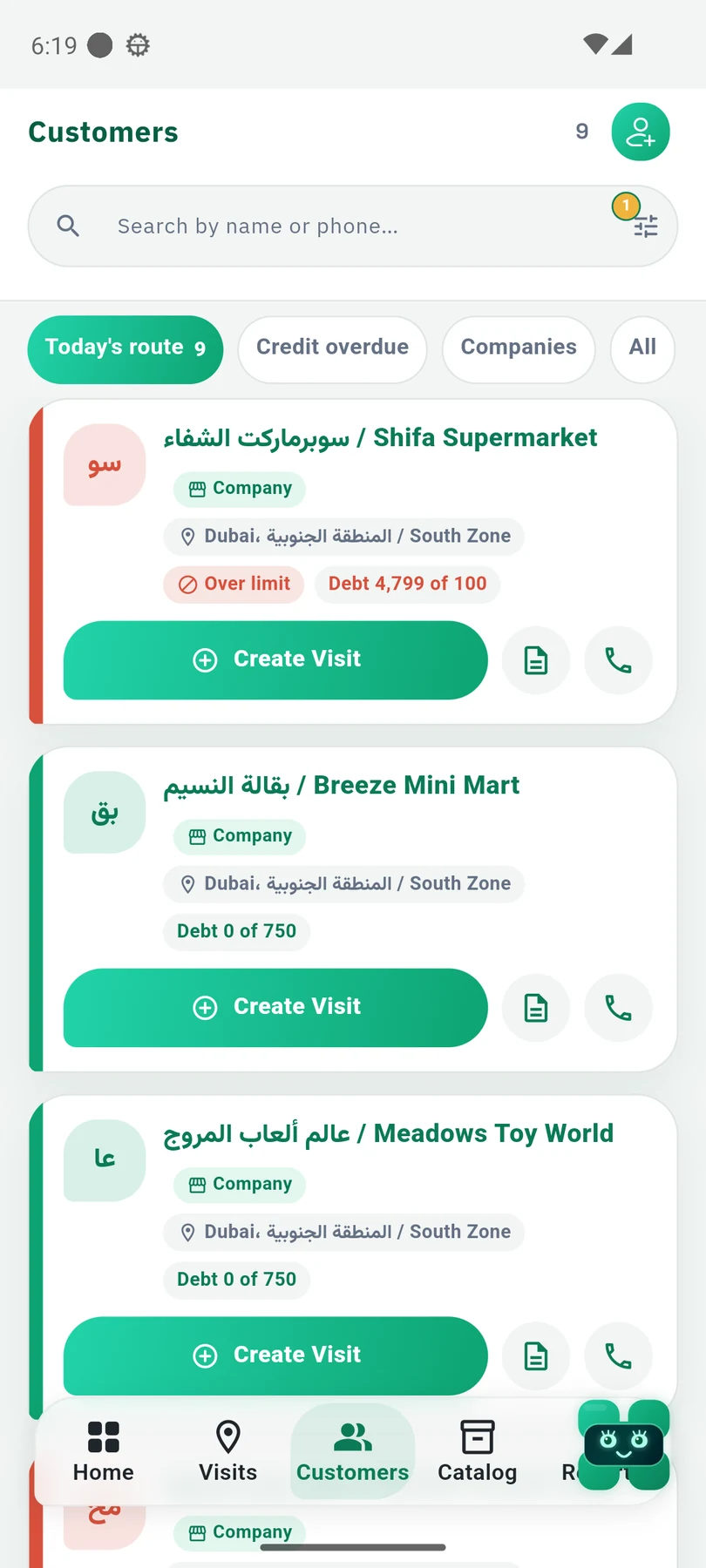
Walk in with the customer’s context.
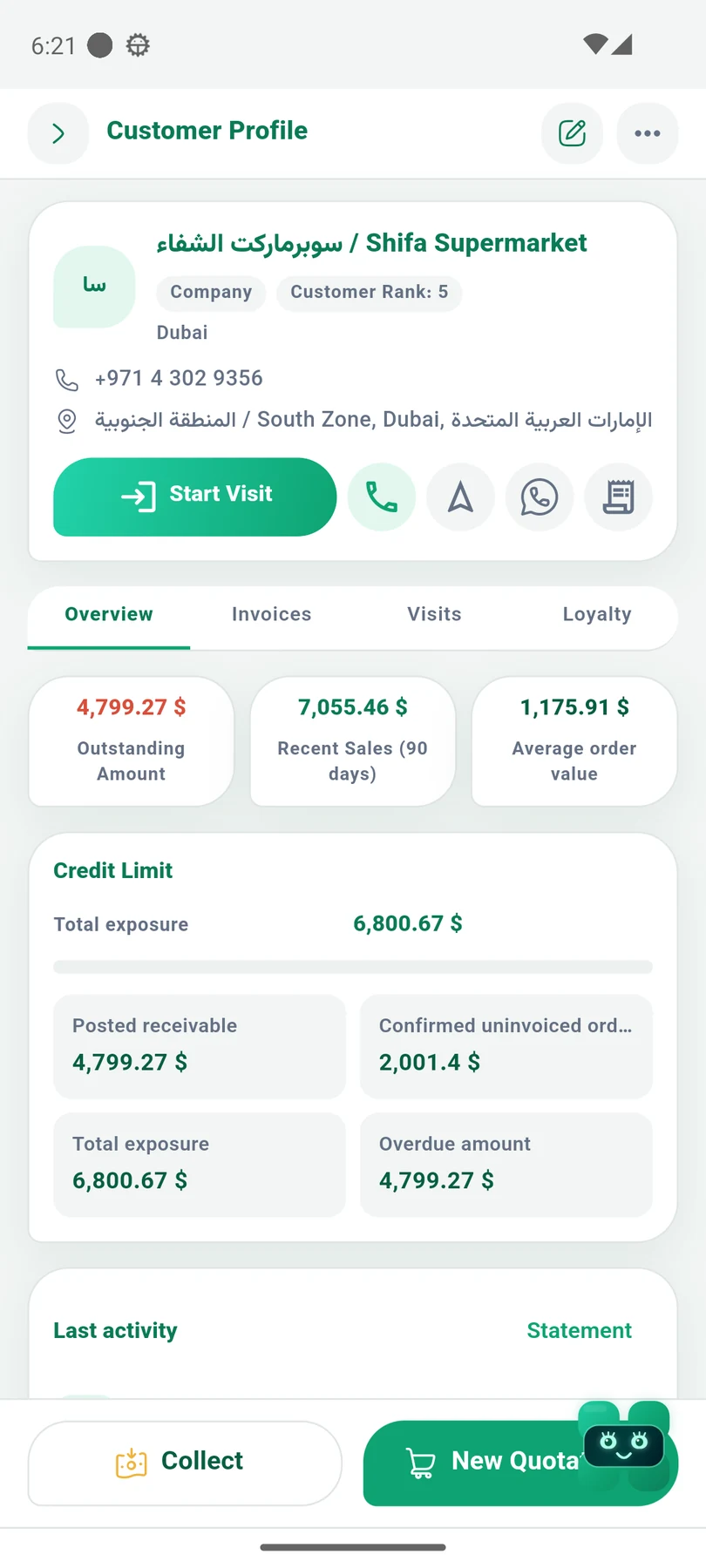
Open the customer profile to review balances, history and related documents, with that context close to the visit.
- Customer profile, balances and available credit context.
- Access related activity and documents.
Products and sales
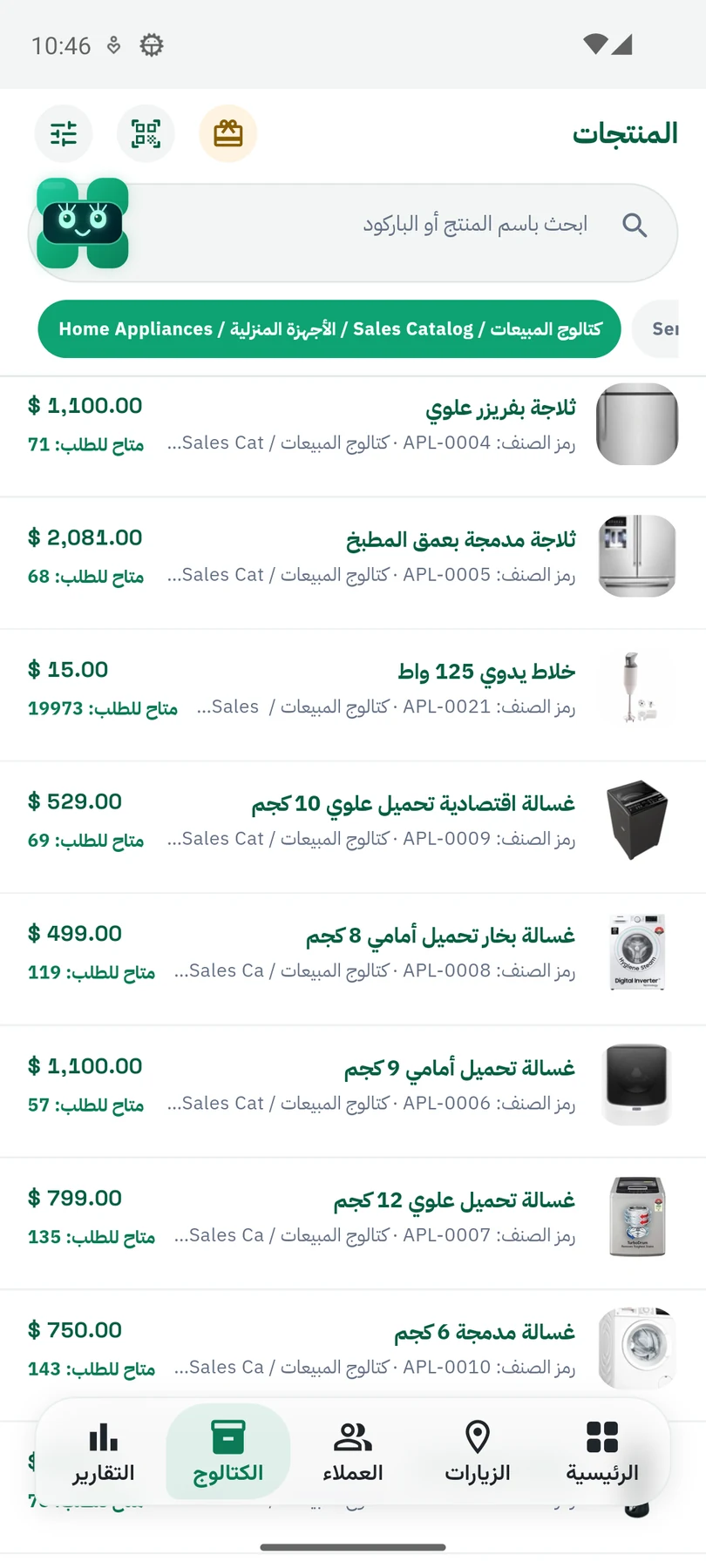
Move from the need to the right product.
Explore the product catalog and available pricing, then continue through the sales-document workflow configured for your work.
- Browse products and displayed pricing.
- Work within configured sales policies and permissions.
Invoices and collections
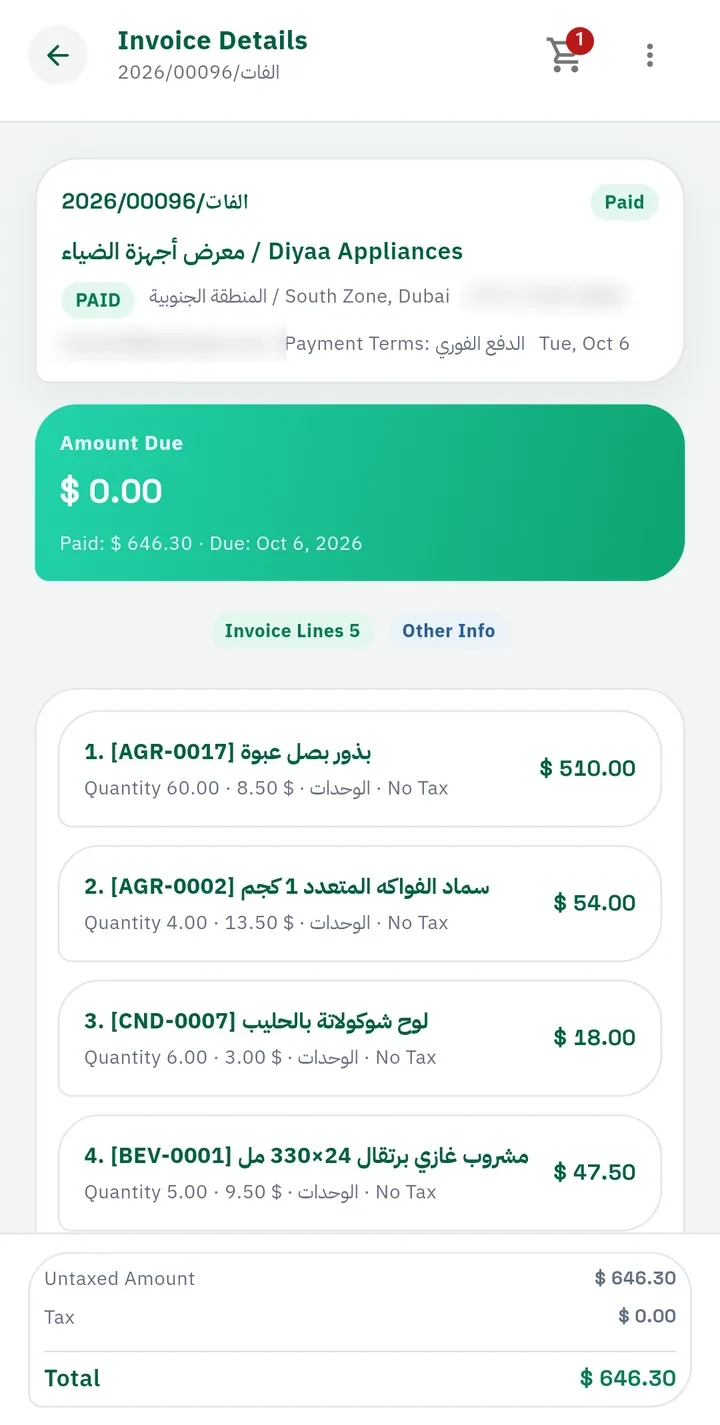
See the amount and its context.
Review invoice details and payment status, then return to the customer account for follow-up and the collection actions available to your role.
- Invoice details and remaining balance.
- Access collections within the customer context.
Offline work and sync
A weak signal need not end your day.
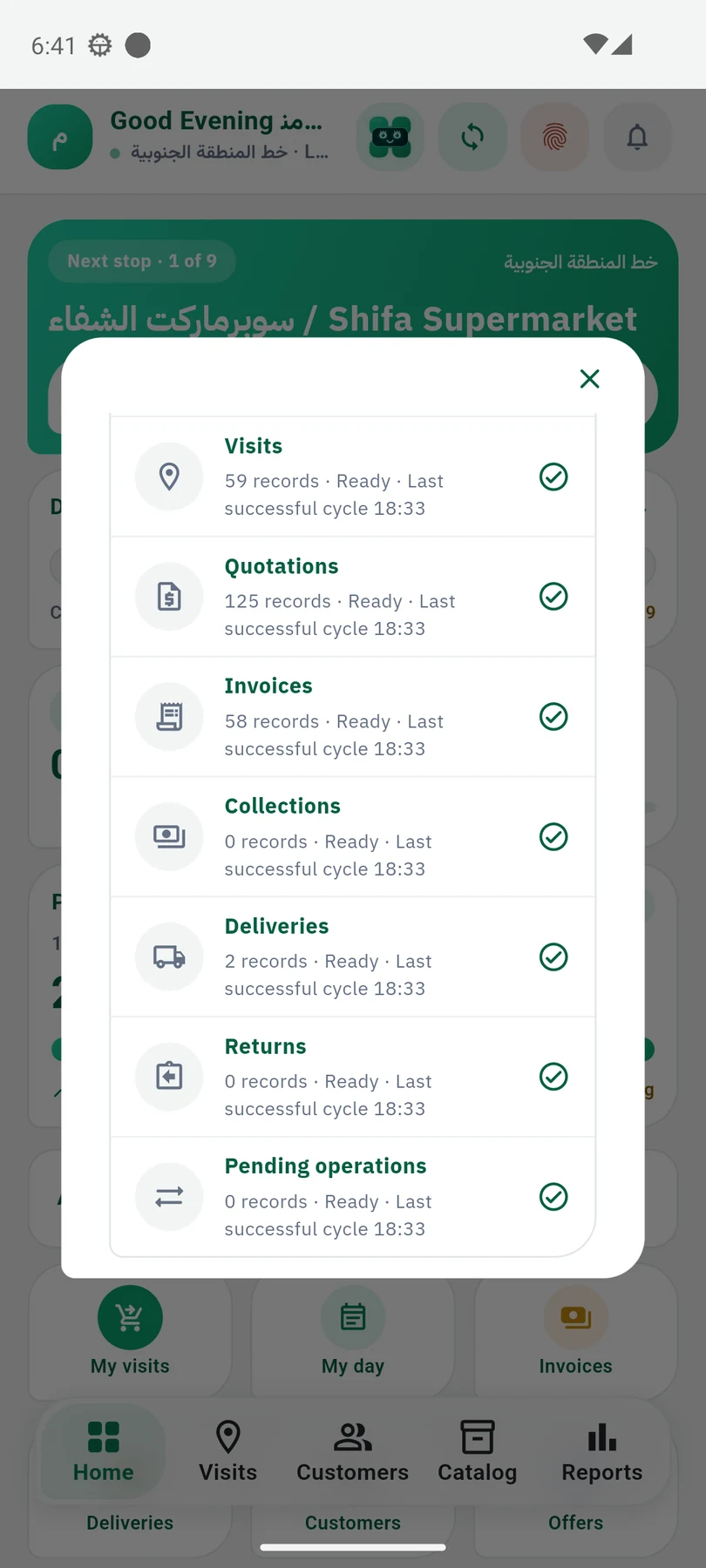
Continue supported work offline. Operations are saved locally; synchronization needs an internet connection to send work and retrieve data.
- Review synchronization items and their status.
- Synchronize the work when connectivity returns.
Review the results
Review the work. Find the next step.
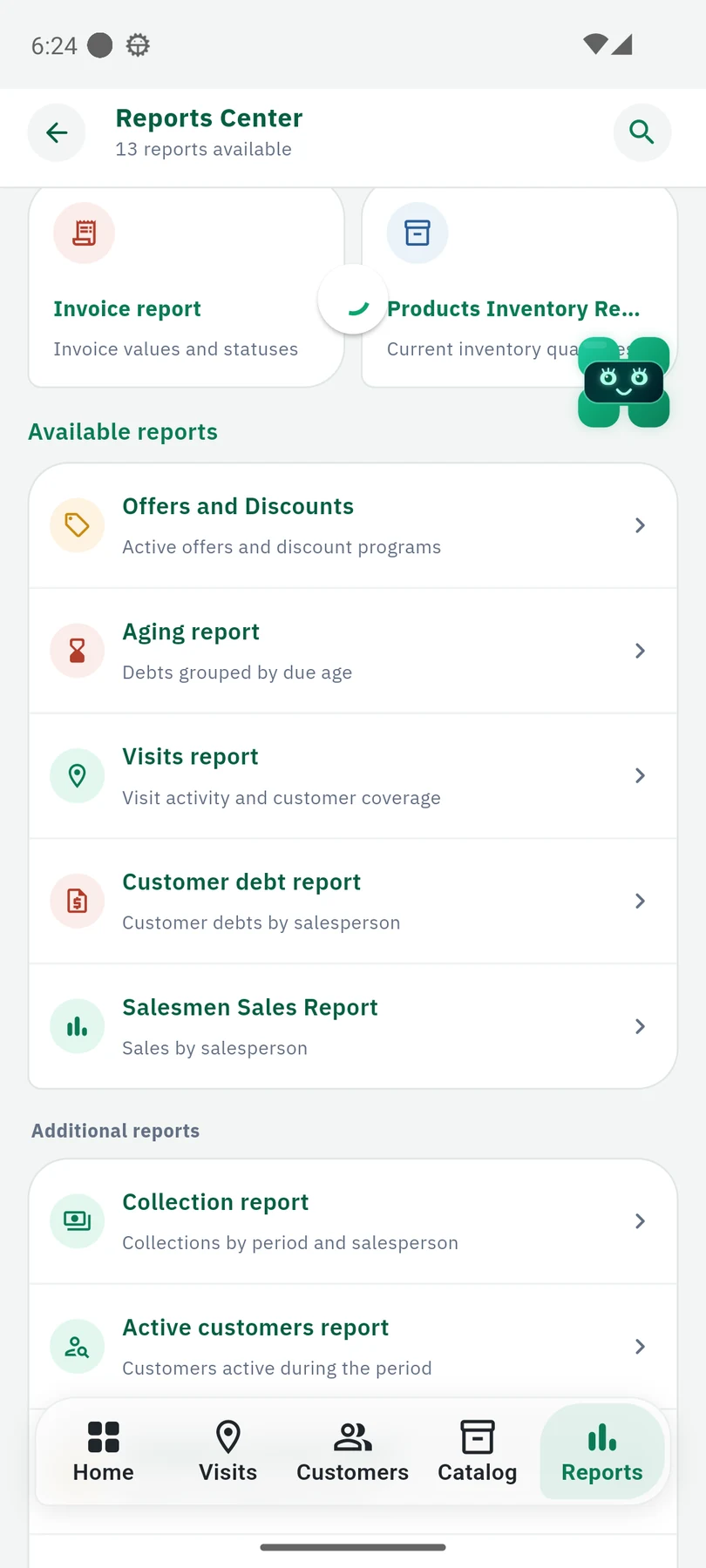
Open the report center for available sales, visit, collection and customer reports, according to your permissions.
- Find available reports in one place.
- Choose the report that answers your work question.
The AI assistant
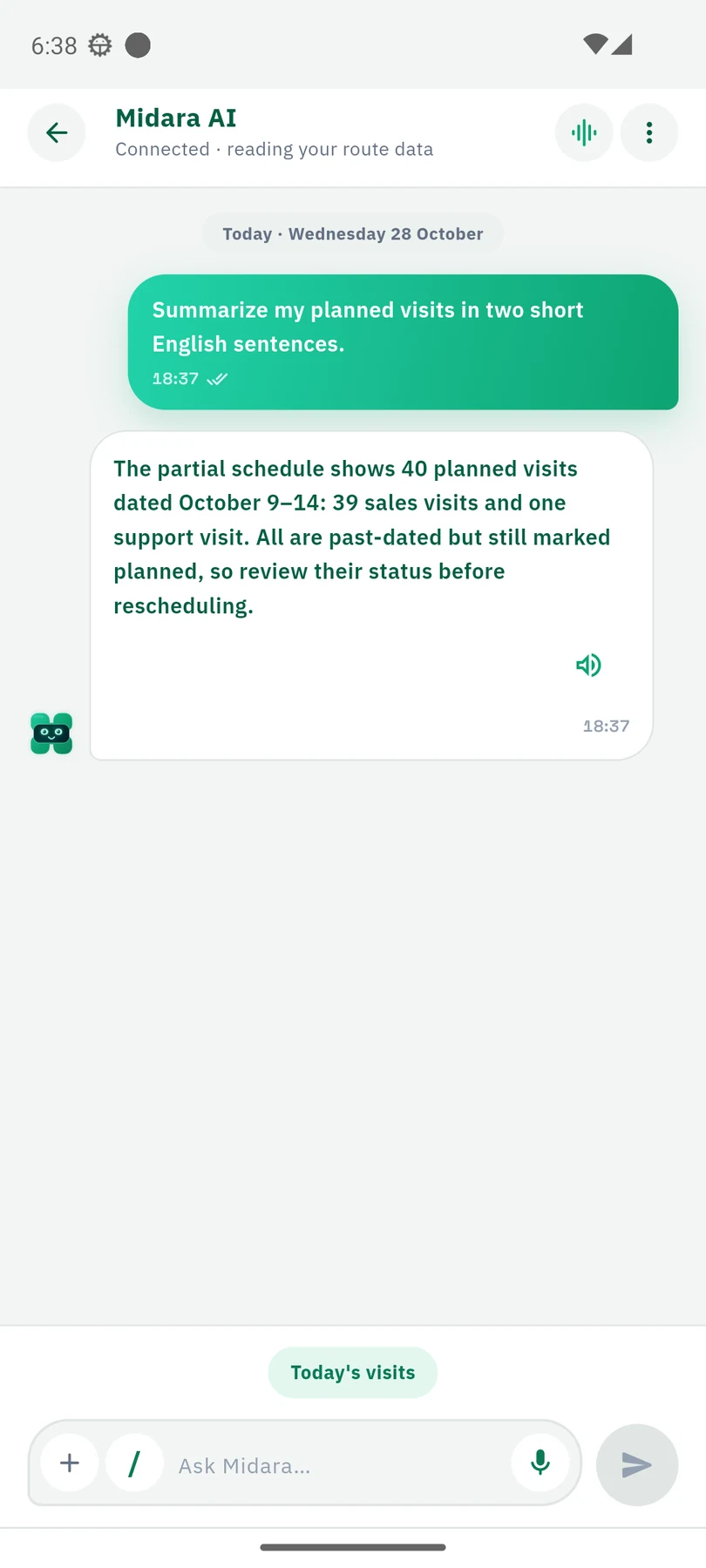
Ask when you need more context.
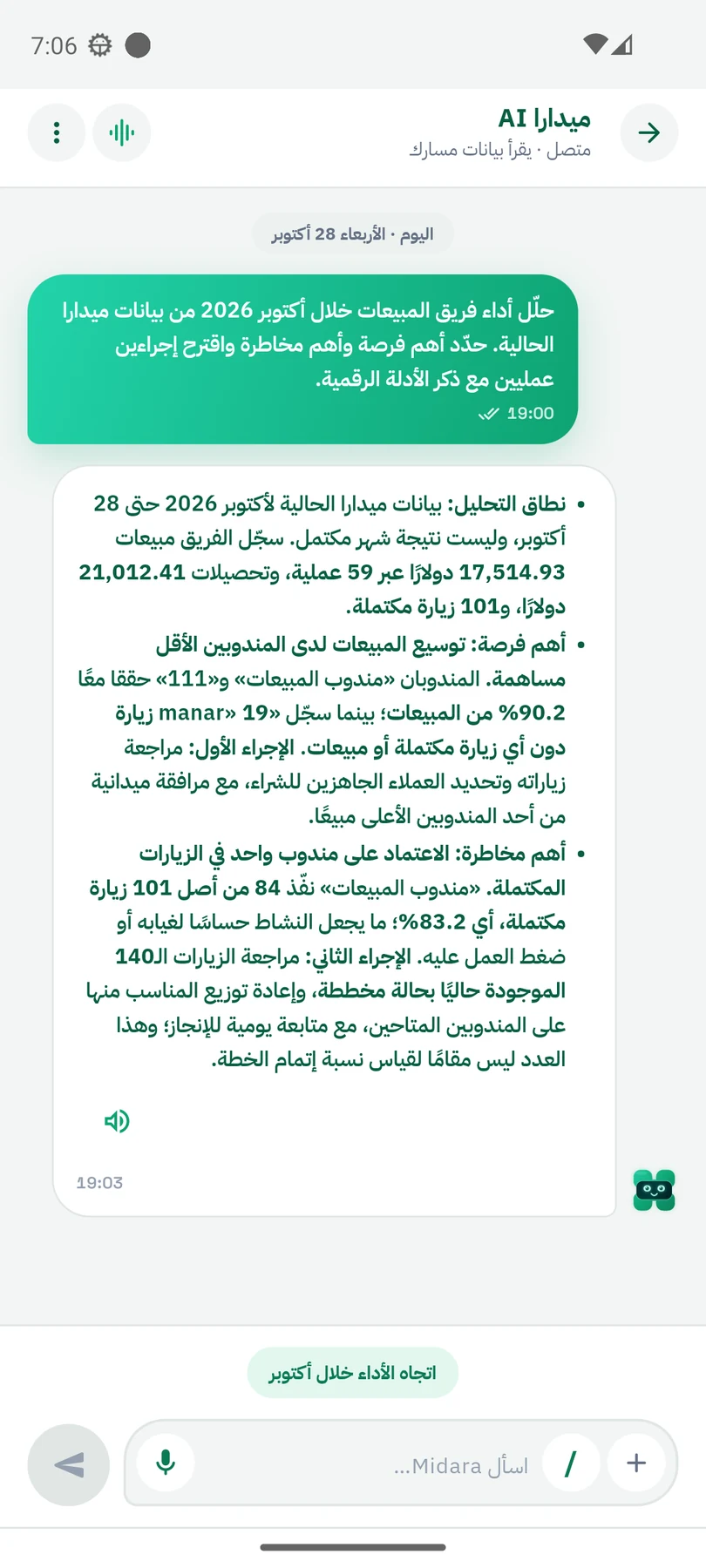
When the AI assistant is enabled, ask questions about your work and the data available to it. This is an optional part of Midara.
- Ask questions within the work context.
- Review the response before using it in a decision.
Team overview
Start with the team’s picture.
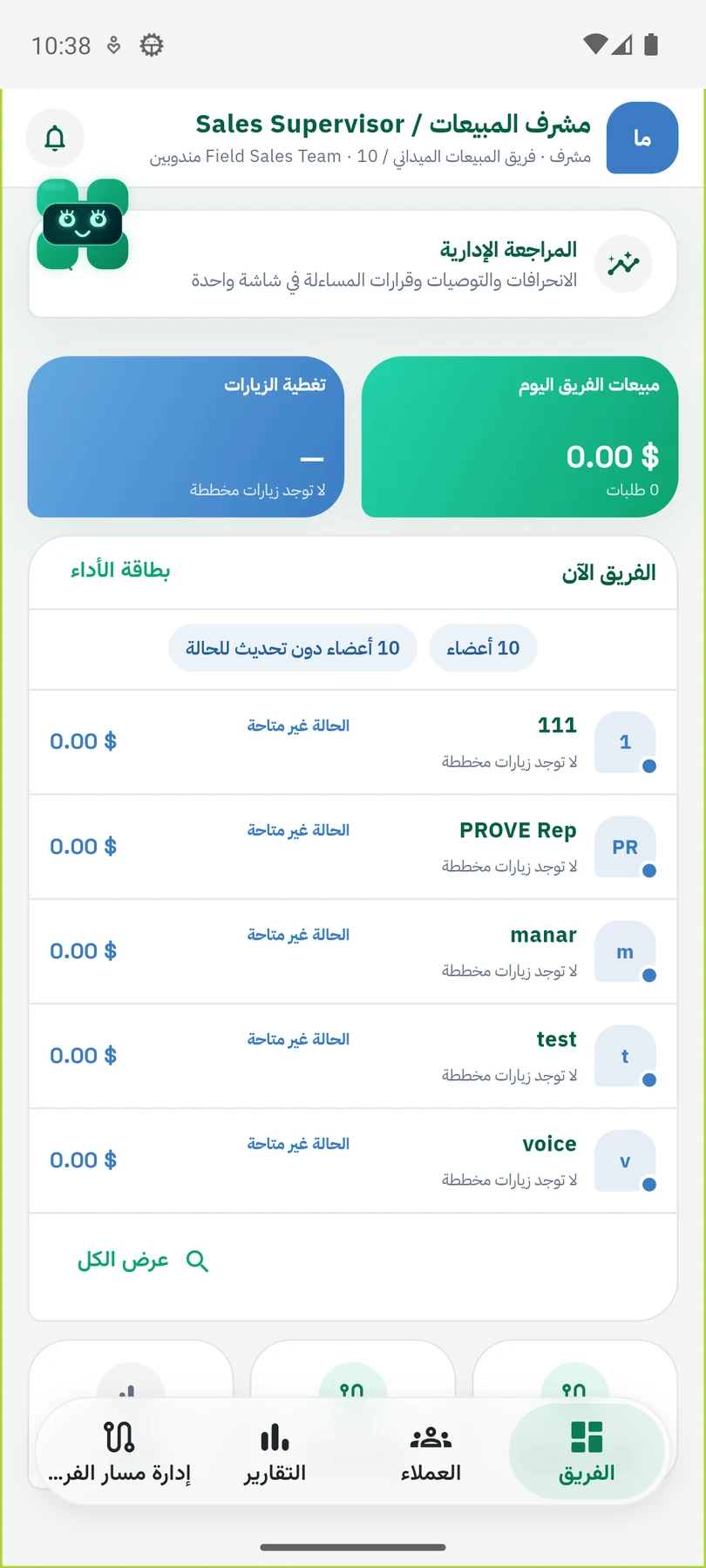
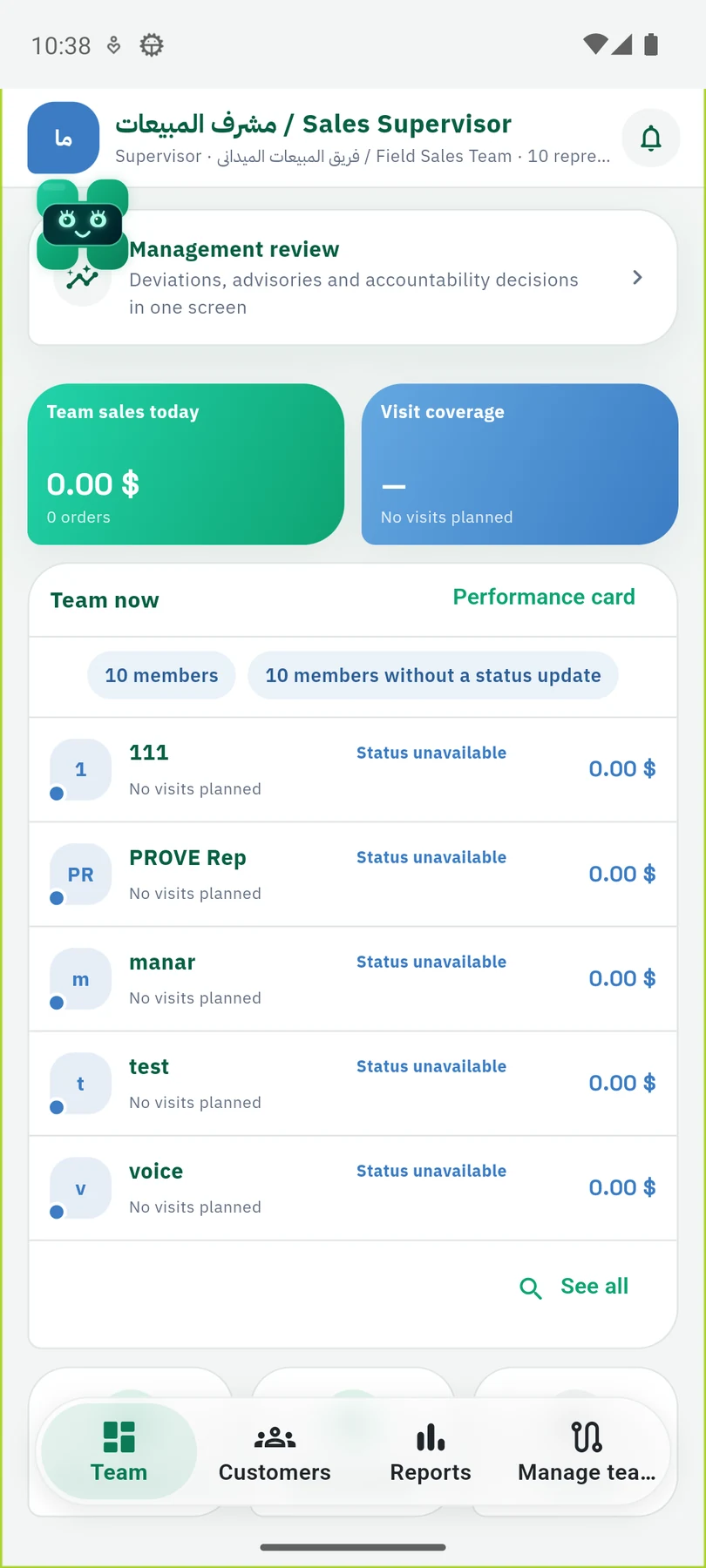
Explore the supervisor’s view and available work indicators, then move to team members or customers as needed.
- Review the team and available work.
- Move between team and customer follow-up.
Customers and coverage
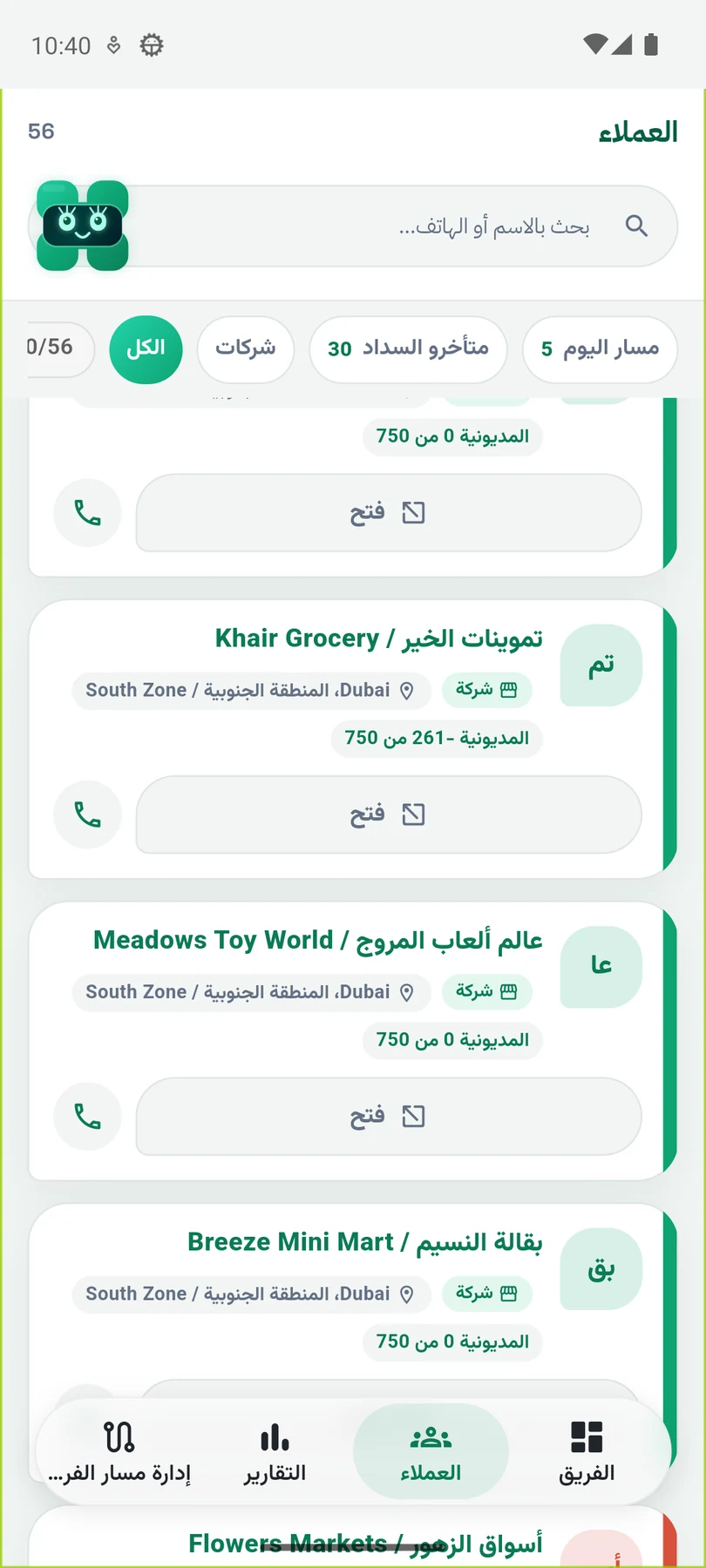
See who needs a visit or follow-up.
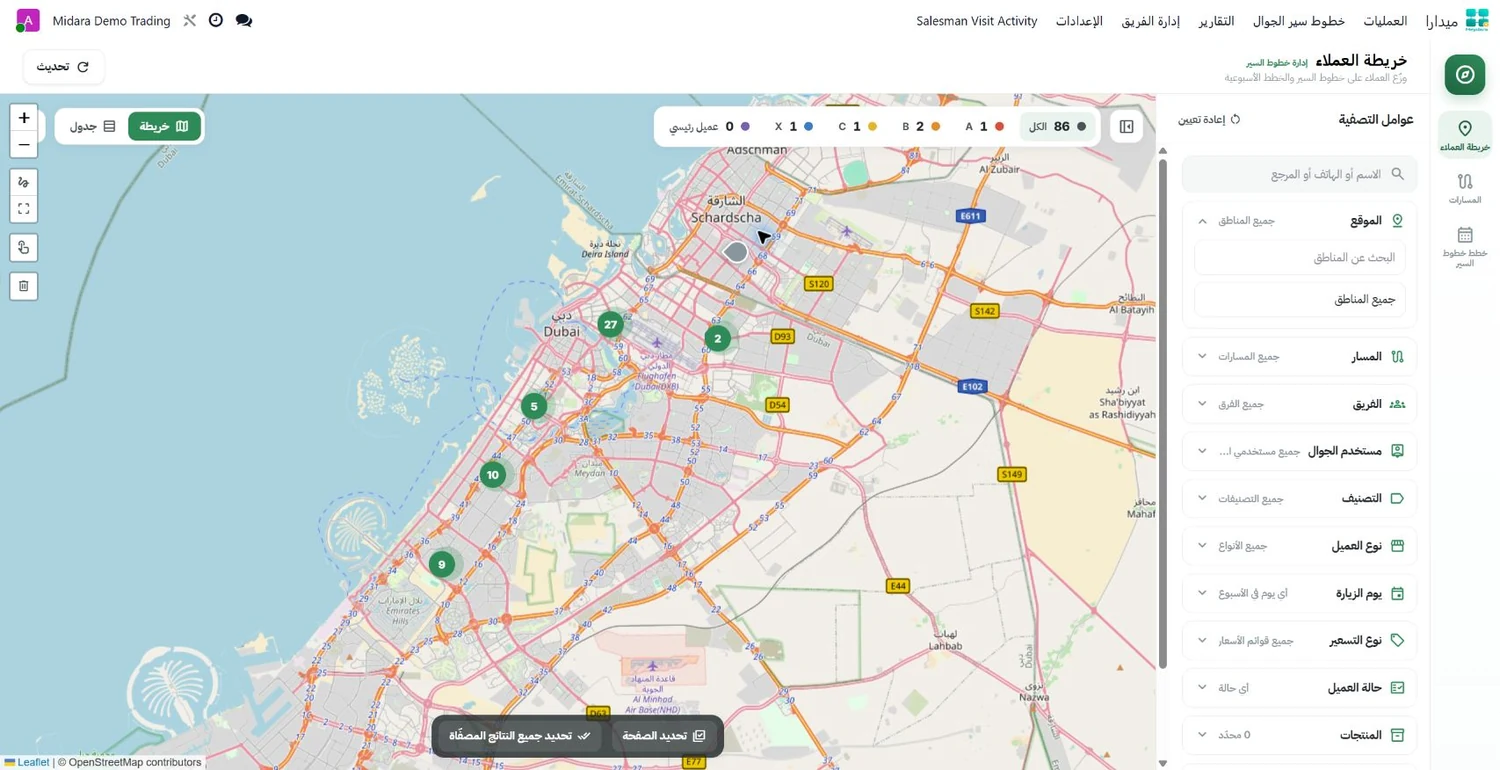
Review customers from the supervisor’s perspective and explore the map for geographic context around the team’s work.
- Review customers within the role’s scope.
- See customer locations on the web map.
Review visits
Follow-up starts with the details.
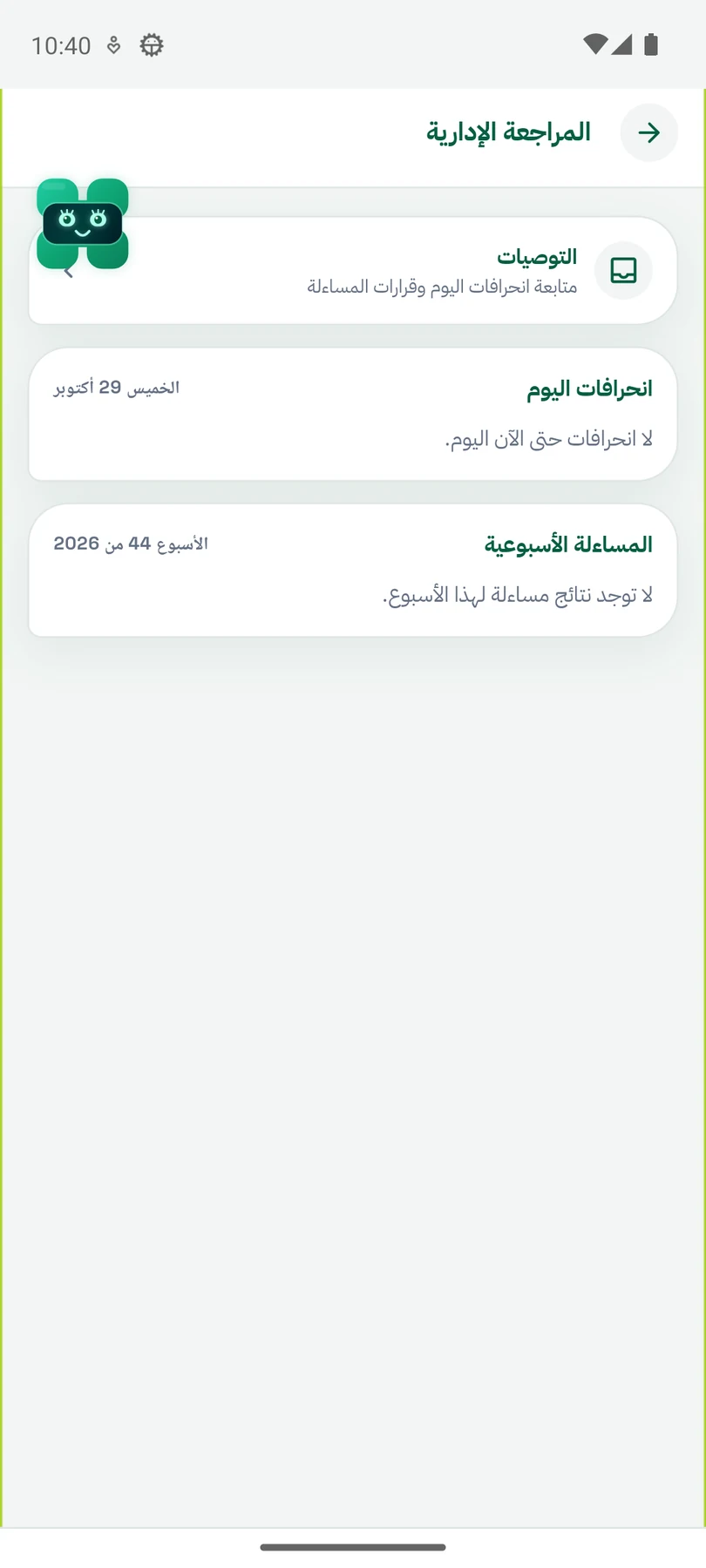
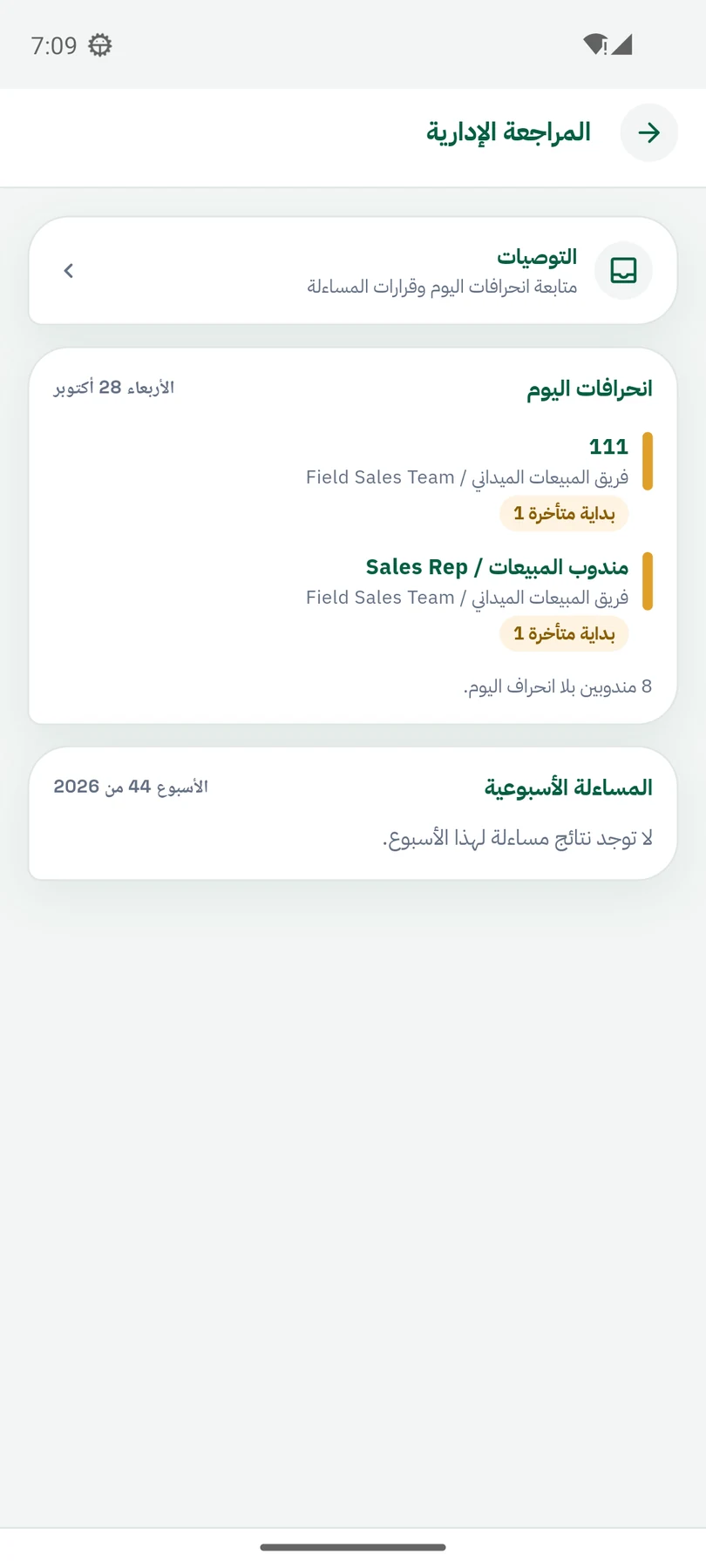
Open the management review and visits available to the supervisor role to look beyond a high-level daily overview.
- Review available work and visits.
- Return to the visit context for follow-up.
Performance and targets
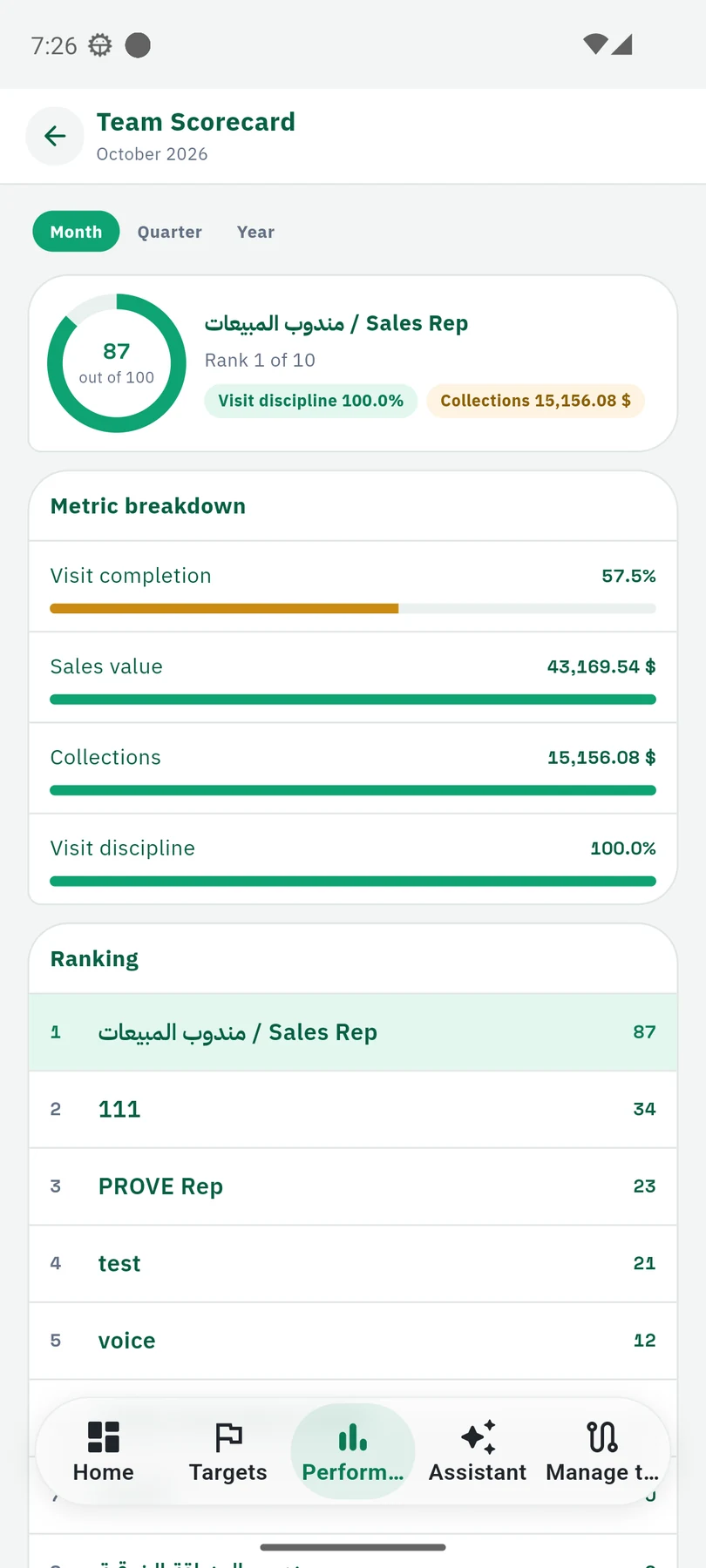
Discuss performance with a clearer view.
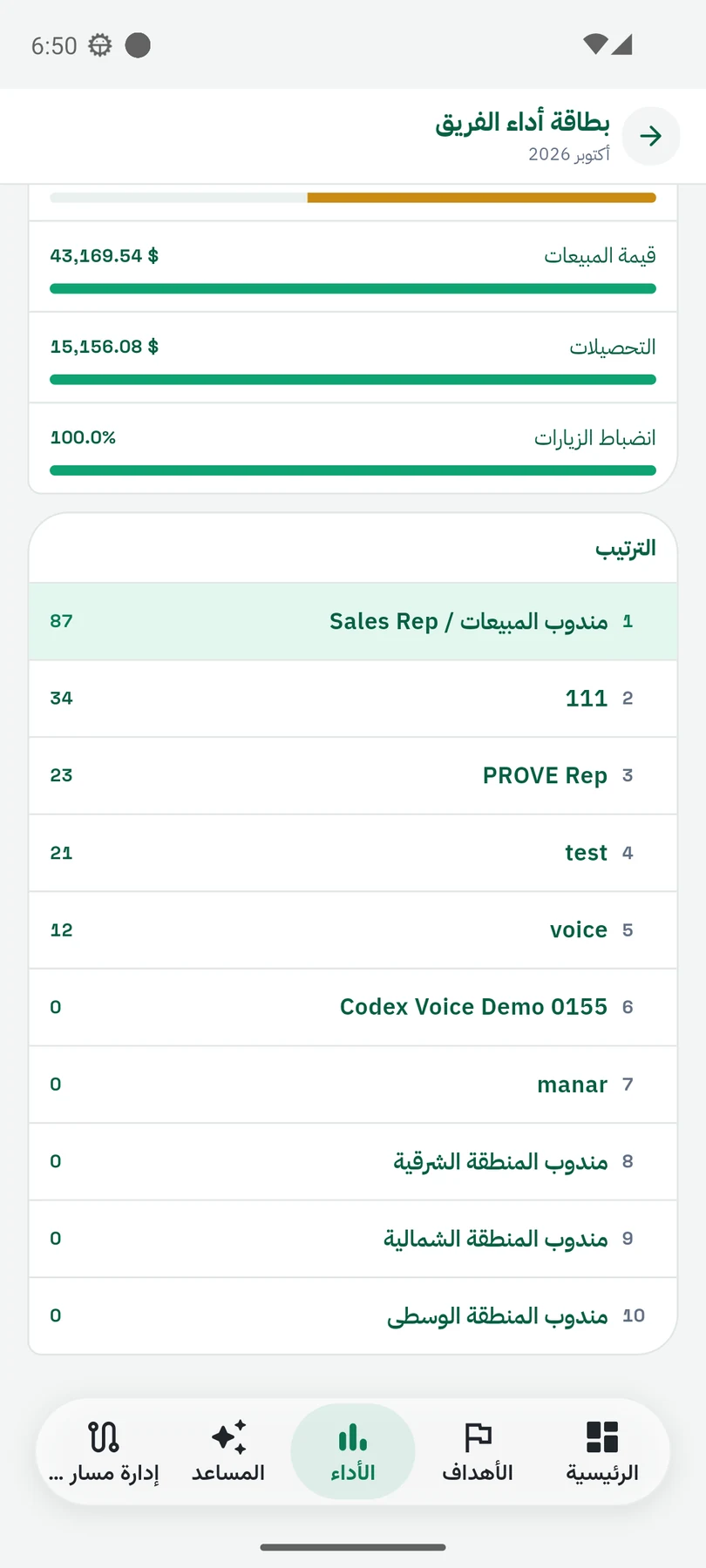
Explore performance and target views available to management roles. Role configuration determines which tools a user can access.
- Review the displayed performance measures.
- Compare results with available targets.
Review and guide
Turn a review into practical follow-up.
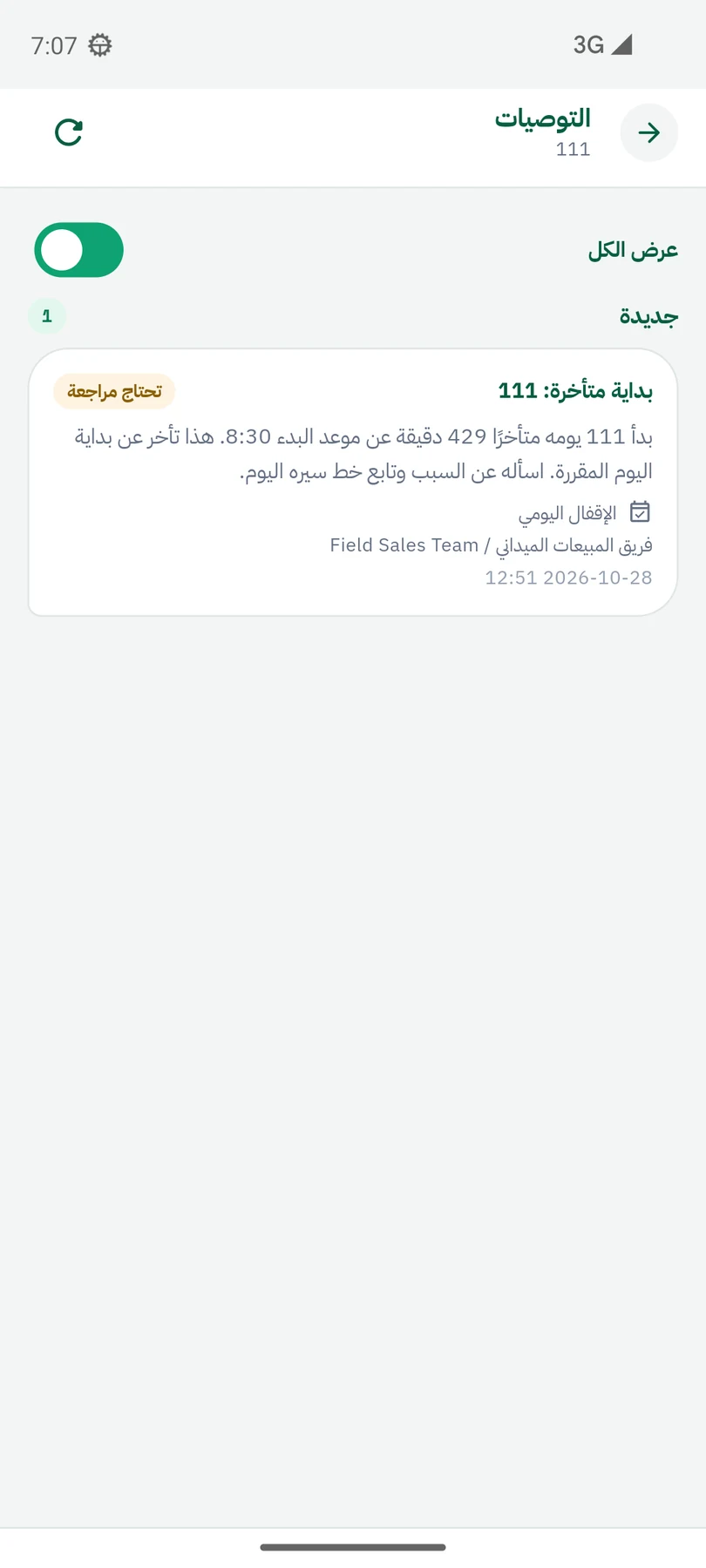
Bring the team view and review findings together to identify work needing follow-up, using the tools available to the configured role.
- Return to the review from the team context.
- Understand a case before choosing the next step.
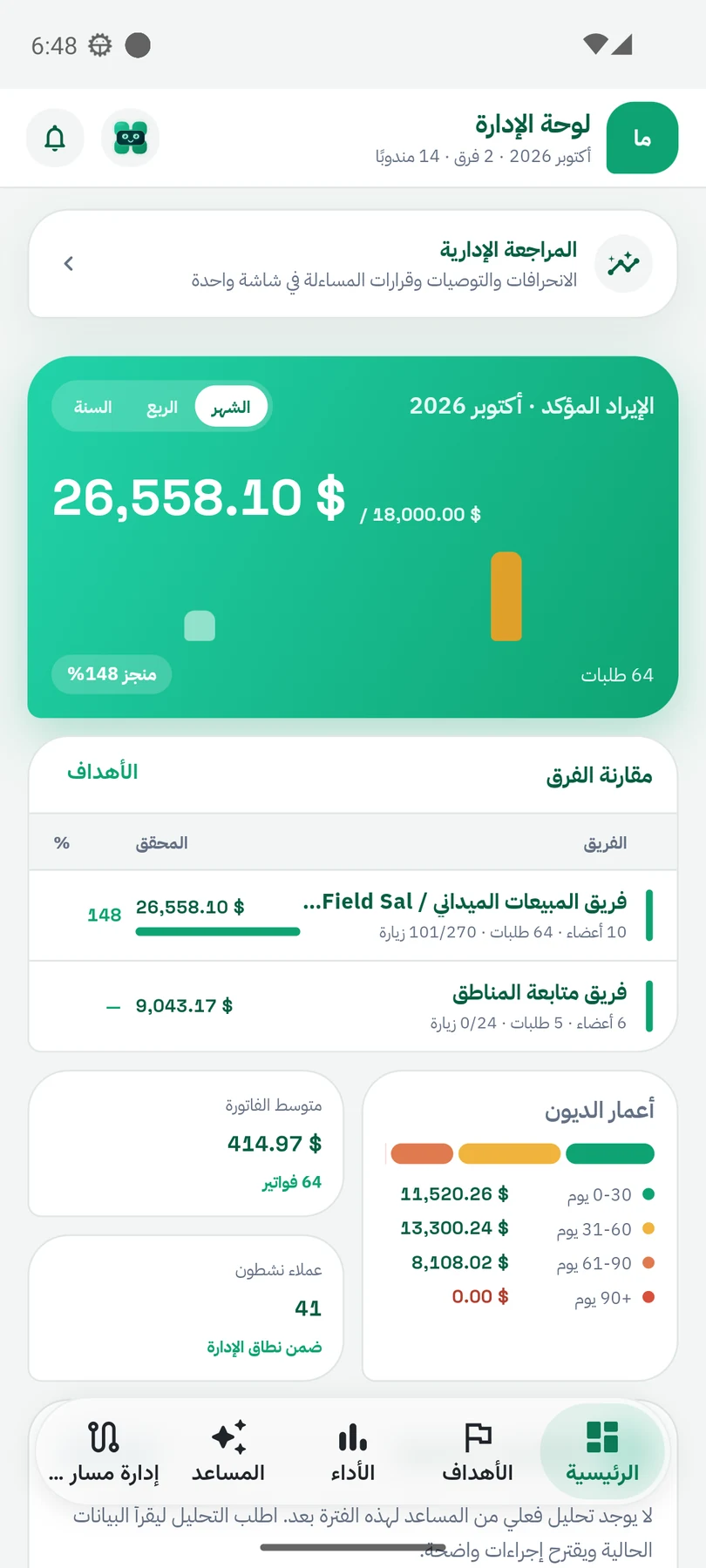
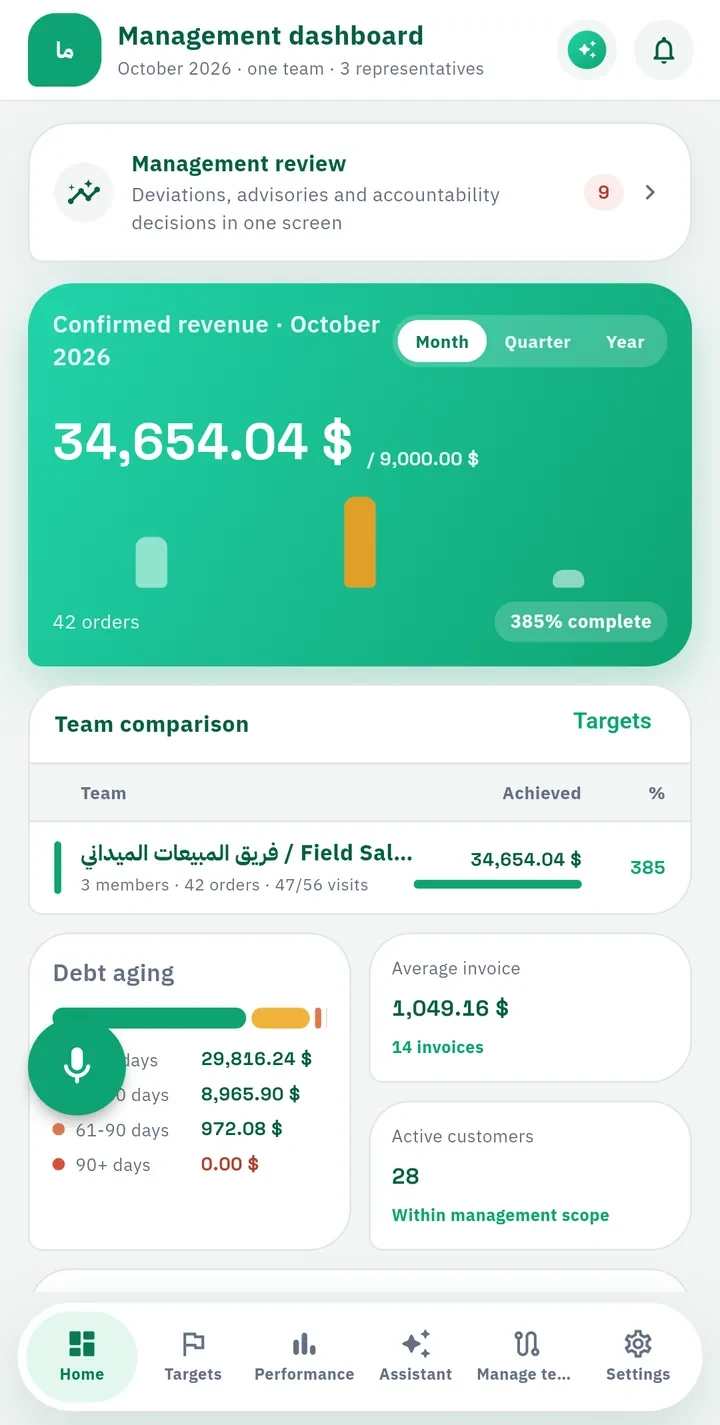
Management overview
Start with the result. Open the details.
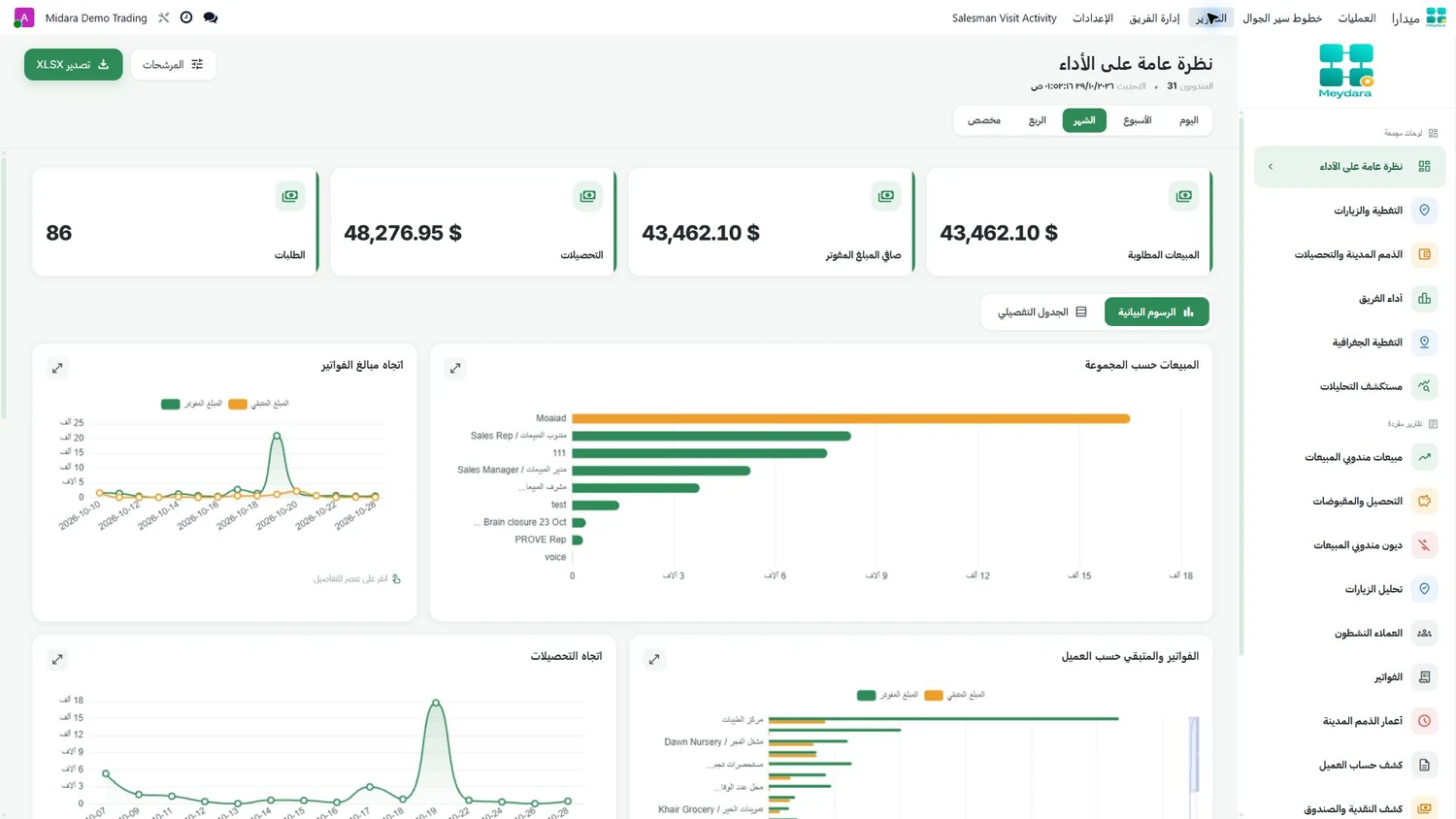
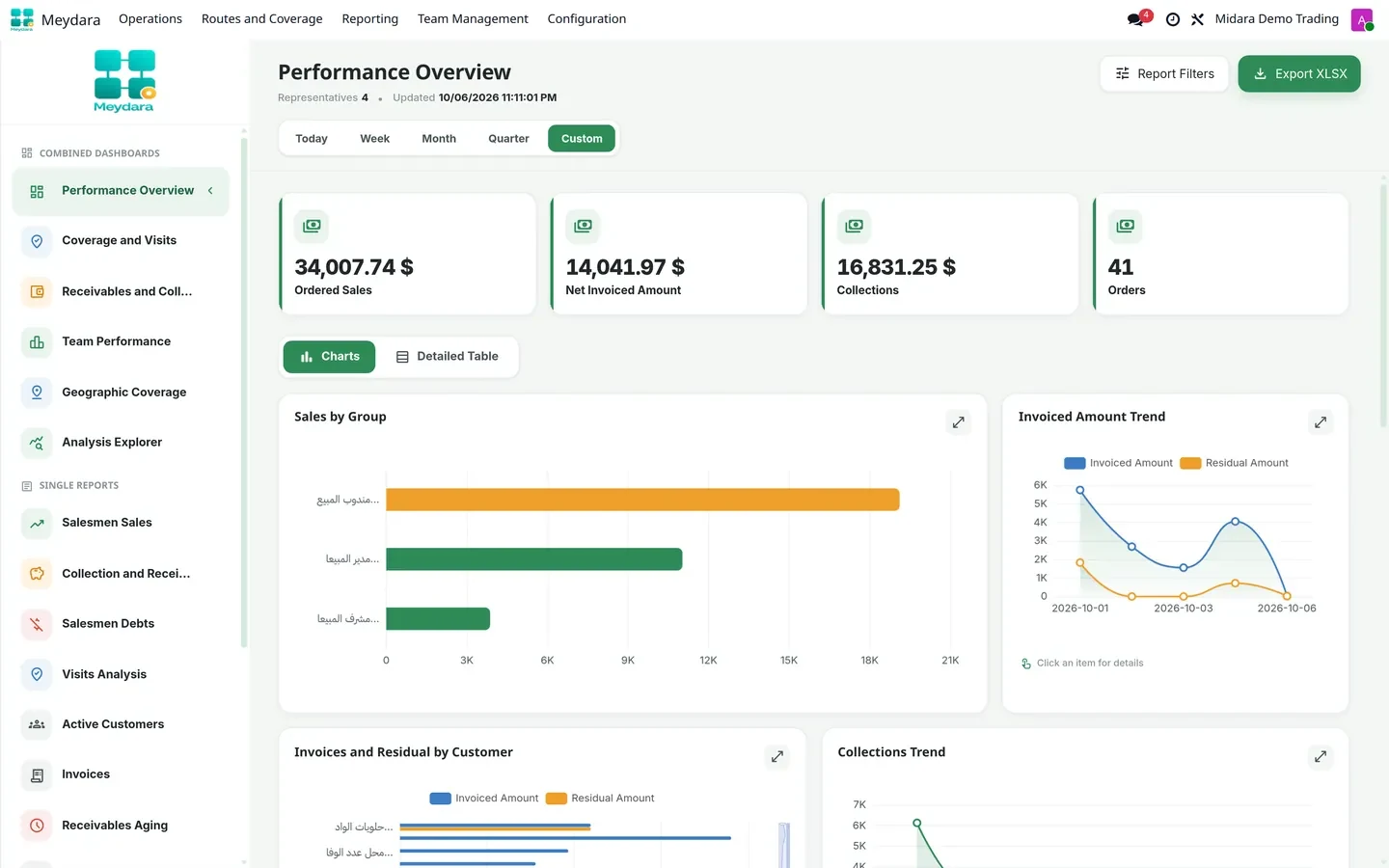
The management interface brings available work indicators together, connecting the overview with teams, reports and targets.
- A management view on mobile.
- Access the web performance report.
Team performance
See the result behind each measure.
Review team performance and the displayed sales, visit and collection measures, then explore the available results.
- Compare team members’ performance.
- Explore the measures shown on the performance card.
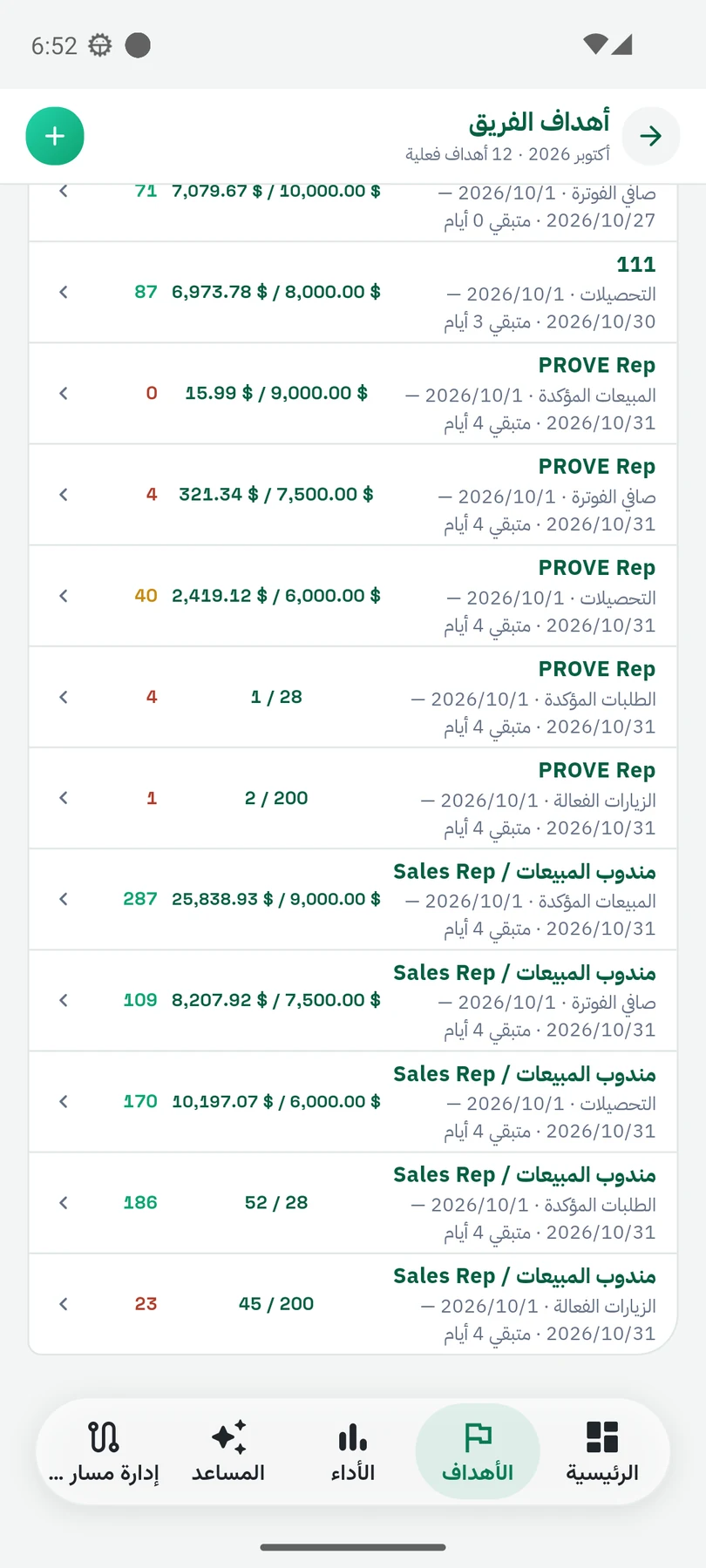
Targets
Put achievement beside the target.
Review the targets and achievements shown in the management interface to add context to team follow-up.
- See achievement against the target.
- Review the available periods and members.
Maps and coverage
See the work in its geographic context.
Web maps add customer locations and visit routes to the information available in your reports.
- See customer locations on the map.
- Explore routes in the web interface.
Reports
Ask a clearer question. Open its report.
Explore web performance reports and the mobile report center, according to the available data and permissions.
- Review web indicators and comparisons.
- Access sales, visit and collection reports.
Review and assistant
Add context to the review.
Review the available cases. When the assistant is enabled, use it for questions and analysis within the permitted data.
- Open management review on mobile.
- Use assistant analysis when the capability is enabled.
The field moves. The office sees the picture.
Visits, customer context, sales and collections give your team a connected view of fieldwork. Review reports, maps and targets from the office.
Supported offline work is saved locally and synchronized when an internet connection returns.
Explore reports